Roles & Permissions
Control what each team member can do with role-based access control.
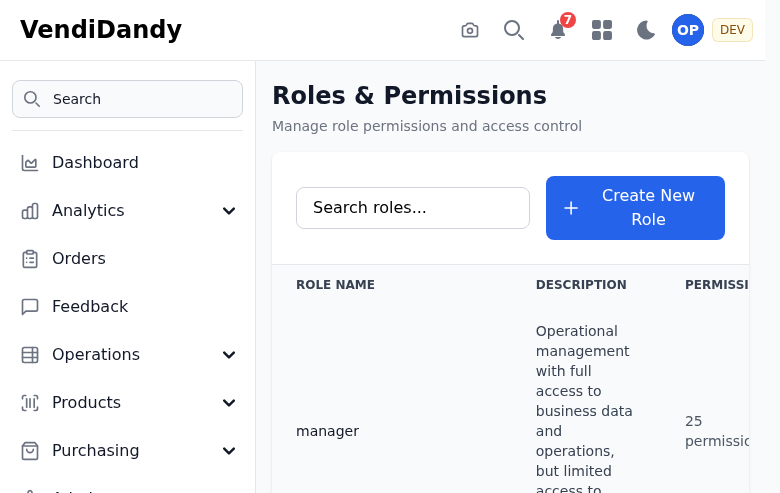
Default Roles
VendVice includes these built-in roles:
Admin
Full access to everything:
- Manage users and roles
- Configure integrations
- Access all data
- Delete records
Manager
Broad access without user management:
- View all machines and data
- Create and edit records
- Run reports
- Cannot manage users
Operator
Day-to-day operations:
- View assigned machines
- Perform restocks
- Manage inventory
- Cannot access settings
Viewer
Read-only access:
- View dashboards
- View machines and products
- Run reports
- Cannot make changes
Permission Matrix
| Permission | Admin | Manager | Operator | Viewer |
|---|---|---|---|---|
| View Dashboard | ✅ | ✅ | ✅ | ✅ |
| View Machines | ✅ | ✅ | ✅ | ✅ |
| Edit Machines | ✅ | ✅ | ❌ | ❌ |
| Delete Machines | ✅ | ❌ | ❌ | ❌ |
| Manage Products | ✅ | ✅ | ❌ | ❌ |
| Perform Restocks | ✅ | ✅ | ✅ | ❌ |
| View Reports | ✅ | ✅ | ✅ | ✅ |
| Manage Users | ✅ | ❌ | ❌ | ❌ |
| Configure Integrations | ✅ | ❌ | ❌ | ❌ |
| Access Settings | ✅ | ✅ | ❌ | ❌ |
Custom Roles
Create custom roles for specific needs:
- Go to Settings > Roles
- Click Create Role
- Name the role
- Select permissions
- Save
Example Custom Roles
Route Driver
- View assigned machines only
- Record restocks
- No product or pricing access
Accountant
- View all financial reports
- Export data
- No operational access
Assigning Roles
To change a user's role:
- Go to Settings > Users
- Click on the user
- Select new role from dropdown
- Save
Changes take effect immediately.
Best Practices
- Principle of least privilege - Give only needed access
- Regular audits - Review roles quarterly
- Use custom roles - Tailor to your organization
- Document roles - Keep a record of role purposes