Planogram
Visually manage what products go in which slots of your machines.
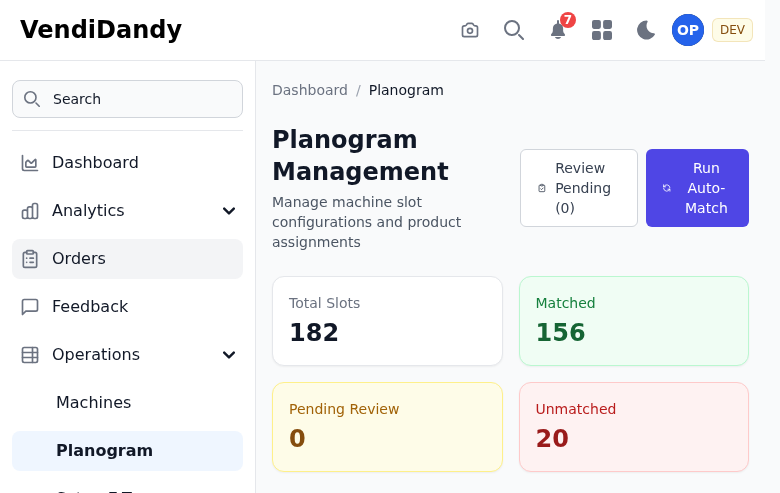
What is a Planogram?
A planogram is a visual map of your machine's slot layout, showing:
- Which product is in each slot
- Slot capacity
- Current stock level
- Price per slot
Viewing a Planogram
- Go to Machines
- Click on a machine
- Select Planogram tab
The planogram shows a grid representing your machine's physical layout.
Assigning Products to Slots
- Click on an empty slot
- Search for a product
- Set the capacity
- Set the price (or use default)
- Save

Slot Information
Each slot displays:
- Product image (if available)
- Product name
- Current quantity / Capacity
- Price
- Stock status indicator (green/yellow/red)
Bulk Operations
For faster setup:
- Copy Slot - Duplicate a slot configuration
- Move Product - Drag products between slots
- Clear Row - Empty an entire row
- Apply Template - Use a saved planogram template
Par Levels
Set par levels to control restock suggestions:
- Par Level - Ideal quantity to maintain
- Min Level - Trigger restock alert when below this
Exporting Planograms
Export your planogram for:
- Printing for field use
- Sharing with restockers
- Backup purposes